Admin Guide · Importing
Import from Jira
1 min read · Updated
If your team used Jira Cloud, you can bring a Jira project into JaWork instead of starting empty. The import copies its issues, and its workflow becomes the board’s columns.
You need a Jira API token, which you create in your Atlassian account.
Create an API token in Atlassian
- Sign in to your Atlassian account.
- Create an API token and copy it. JaWork’s import screen links straight to the right page: Create an API token.
Import into a new project
- Click Projects, then View all projects.
- Click Import from Jira.
- Type your Jira site (such as https://your-team.atlassian.net), your Atlassian account email and the API token.
- Choose the Jira project to import.
- Check the new project’s name and key; they are filled in from Jira.
- Start the import.
The project is created at once, and the issues arrive in the background. You can leave the page; the import keeps going.
Import into an existing project
- Open the project, click Profile, then Import.
- Fill in Jira site, Atlassian account email and API token, and click Connect.
- Choose the Jira project and start the import.
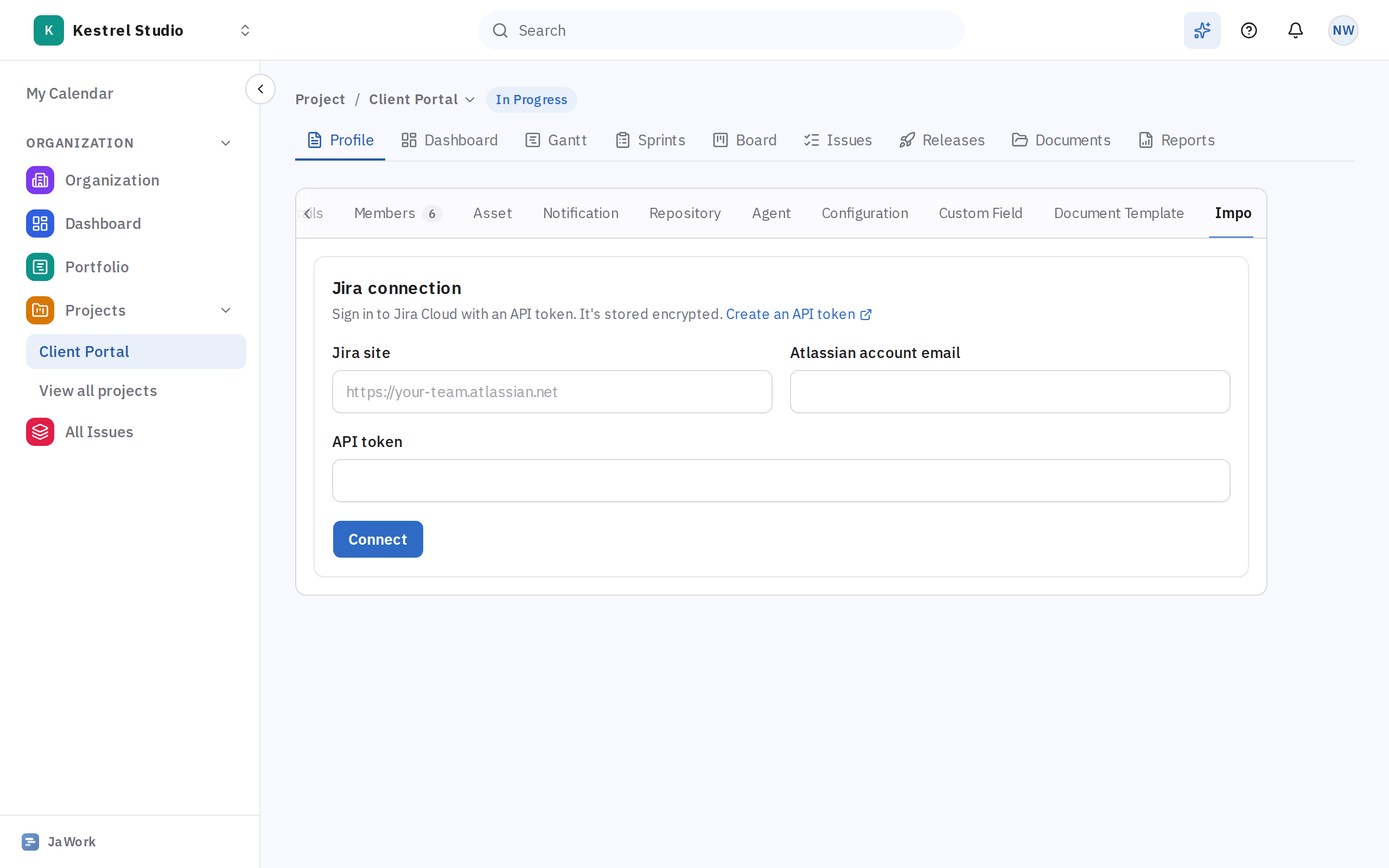
Your token is stored encrypted, and only for this project.
Tip: You can run the import again later. Issues already imported are updated, not copied twice.
For a spreadsheet instead of Jira, see importing from Excel.
Was this helpful?
Thank you — it helps us improve the guides.
Still stuck? The assistant answers from these guides, and a person takes over when it can't.
Chat with us