Admin Guide · AI assistants and security
Connect AI assistants (MCP)
1 min read · Updated
JaWork works with AI assistants such as Claude, ChatGPT, Copilot and Cursor through MCP, an open standard for connecting assistants to apps. Once connected, you can ask your assistant about your issues, or have it create and update them.
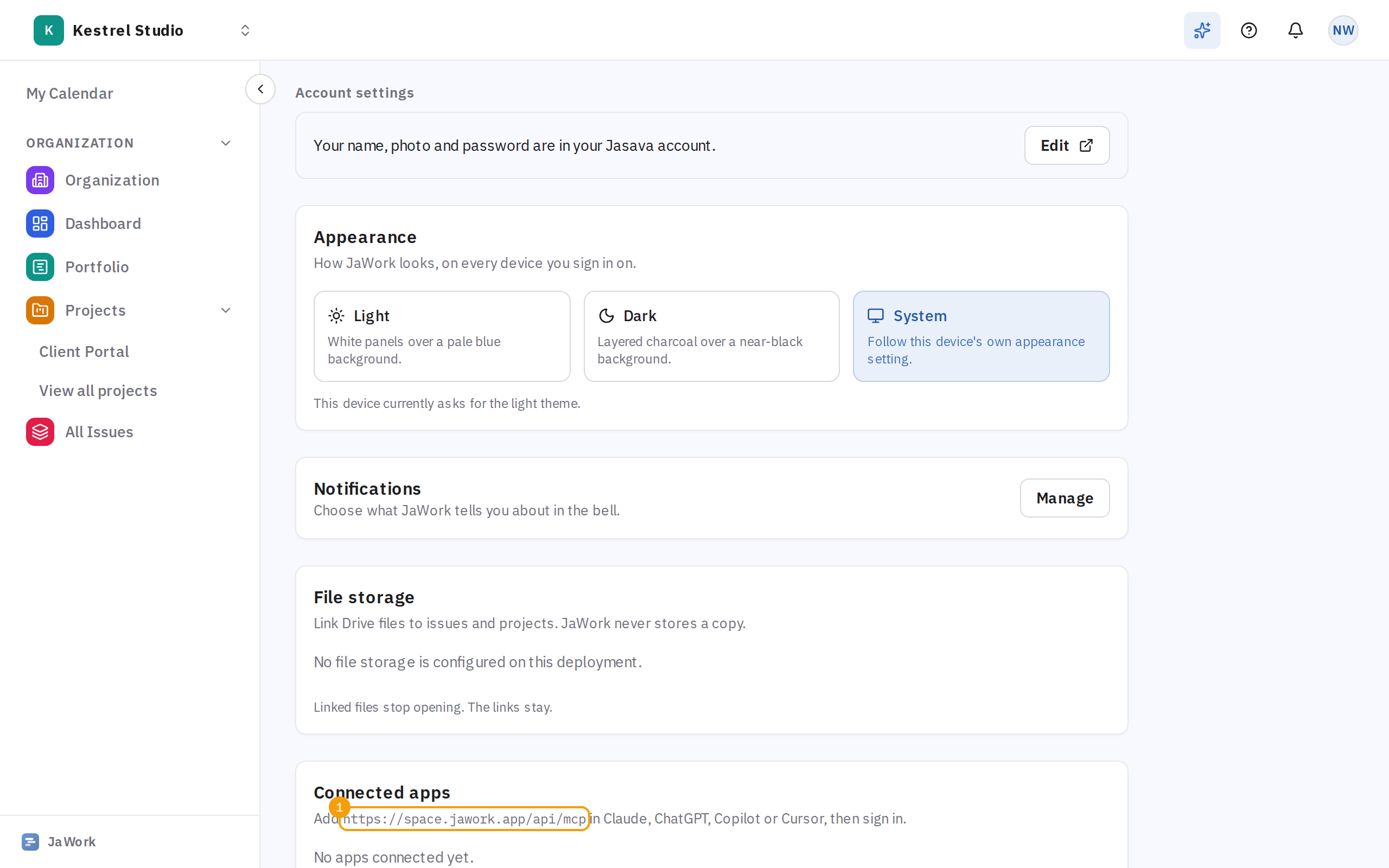
Connect an assistant
- Open your Account settings and scroll to Connected apps. It shows the address to use: https://space.jawork.app/api/mcp.
- In your assistant, add a new connector or MCP server with that address.
- Your assistant opens JaWork’s sign-in. Sign in and press Allow.
The assistant is now listed under Connected apps. Click Disconnect to remove it at any time.
Use an API token instead
Some tools can’t sign in and need a token:
- On Account settings, under API tokens, type a Name, such as “Claude Desktop”.
- Choose the Organization the token is for, and an expiry date if you want one.
- Click Create token and copy it at once. JaWork shows it only this one time.
The tool sends it as Authorization: Bearer …. Revoke a token from the same list when you no longer need it.
What an assistant can reach
An assistant acts as you. It sees only the organizations, projects and issues you can see, and changes only what you are allowed to change — the same rules as on screen. Nothing more.
Tip: Make one token per tool, so you can revoke one without breaking the others.
jaAI, JaWork’s own assistant, needs no setup: see Ask jaAI.
Was this helpful?
Thank you — it helps us improve the guides.
Still stuck? The assistant answers from these guides, and a person takes over when it can't.
Chat with us