Admin Guide · Your organization
Work calendar — working days, hours and holidays
1 min read · Updated
The work calendar tells JaWork when your team works. Sprint capacity, the working days left in a sprint, due-date counts and cost reports all use it.
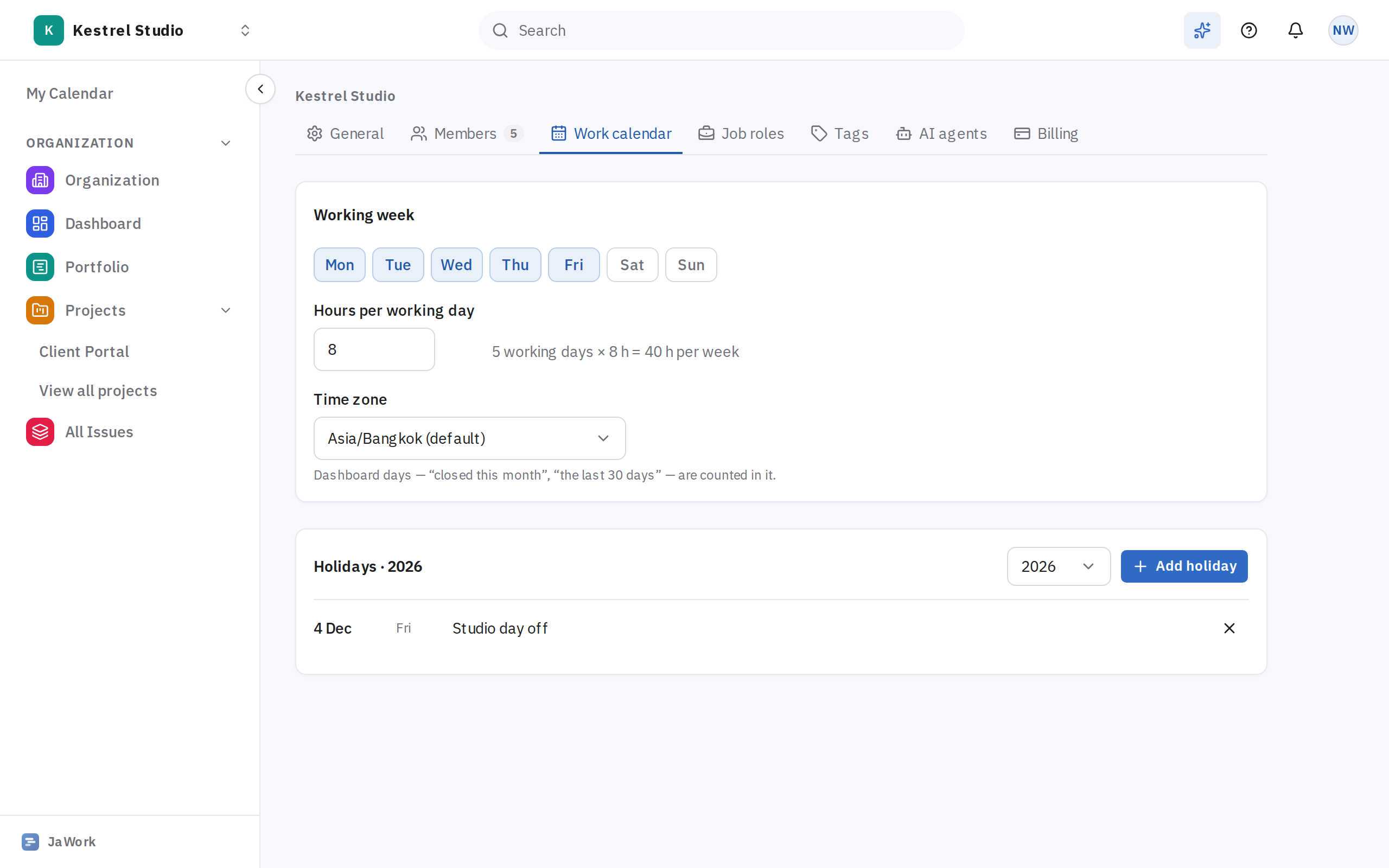
Set the working week
- Click Organization and open the Work calendar tab.
- Under Working week, click the days your team works. Chosen days are blue.
- Type the Hours per working day. JaWork shows the week’s total beside it, for example “5 working days × 8 h = 40 h per week”.
- Choose your Time zone. Dashboard days, such as “closed this month”, are counted in it.
Add holidays
- Under Holidays, choose the year.
- Click Add holiday, pick the date and give it a name, such as “Studio day off”.
A holiday is left out of working days everywhere: a sprint across it has a day less, and the Gantt chart shades it. Click the × at the end of a row to remove a holiday.
Tip: Add next year’s holidays before the year starts, so sprints planned across New Year count correctly.
Costs per person come from job roles and their rates.
Was this helpful?
Thank you — it helps us improve the guides.
Still stuck? The assistant answers from these guides, and a person takes over when it can't.
Chat with us