User Guide · Sprints
Plan a sprint
1 min read · Updated
A sprint is a fixed stretch of time, often two weeks, with a set of issues the team commits to finish. You plan it on the Sprints tab.
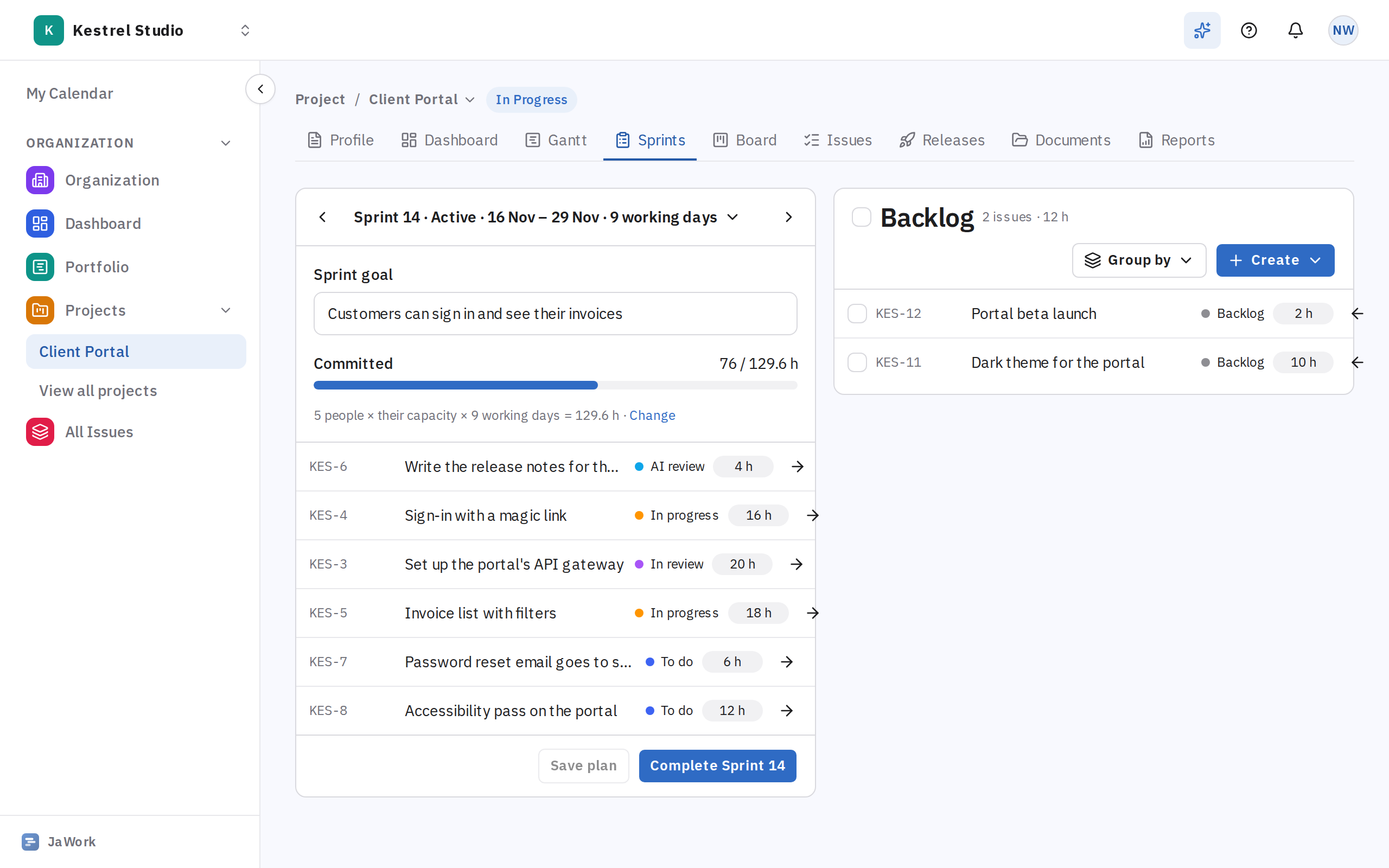
Plan the sprint
- Open the project and click Sprints.
- On the left, choose the sprint with the arrows or the list at the top, for example Sprint 14 · Active.
- Write the Sprint goal: one sentence about what the sprint should achieve.
- On the right, the Backlog lists the issues not in a sprint. Click the arrow at the end of an issue’s row to move it into the sprint. The arrow on a sprint issue moves it back.
- Click Save plan.
To move several issues at once, tick them in the backlog first.
Check the capacity
Committed compares the sprint’s hours with what your team can do. For example, 76 of 129.6 hours means there is room for more. The line below it shows how the capacity is worked out — people, their capacity and the working days. Click Change to adjust it.
The working days leave out weekends and your organization’s holidays.
Add issues from here
Click Create above the backlog to add a new issue without leaving the page. Group by groups the backlog by assignee, priority or type.
Complete the sprint
When the sprint ends, click Complete Sprint 14 (the button names your sprint). Issues that are not done go back to the backlog or to the next sprint.
Tip: Your project admin can turn on an automation that completes the sprint by itself when the last issue is done.
While the sprint runs, the team works from the board.
Was this helpful?
Thank you — it helps us improve the guides.
Still stuck? The assistant answers from these guides, and a person takes over when it can't.
Chat with us