User Guide · Issues
Comments, @mentions and attachments
4 min read · Updated
Comments keep the conversation about a piece of work on the issue itself, where everyone can find it later.
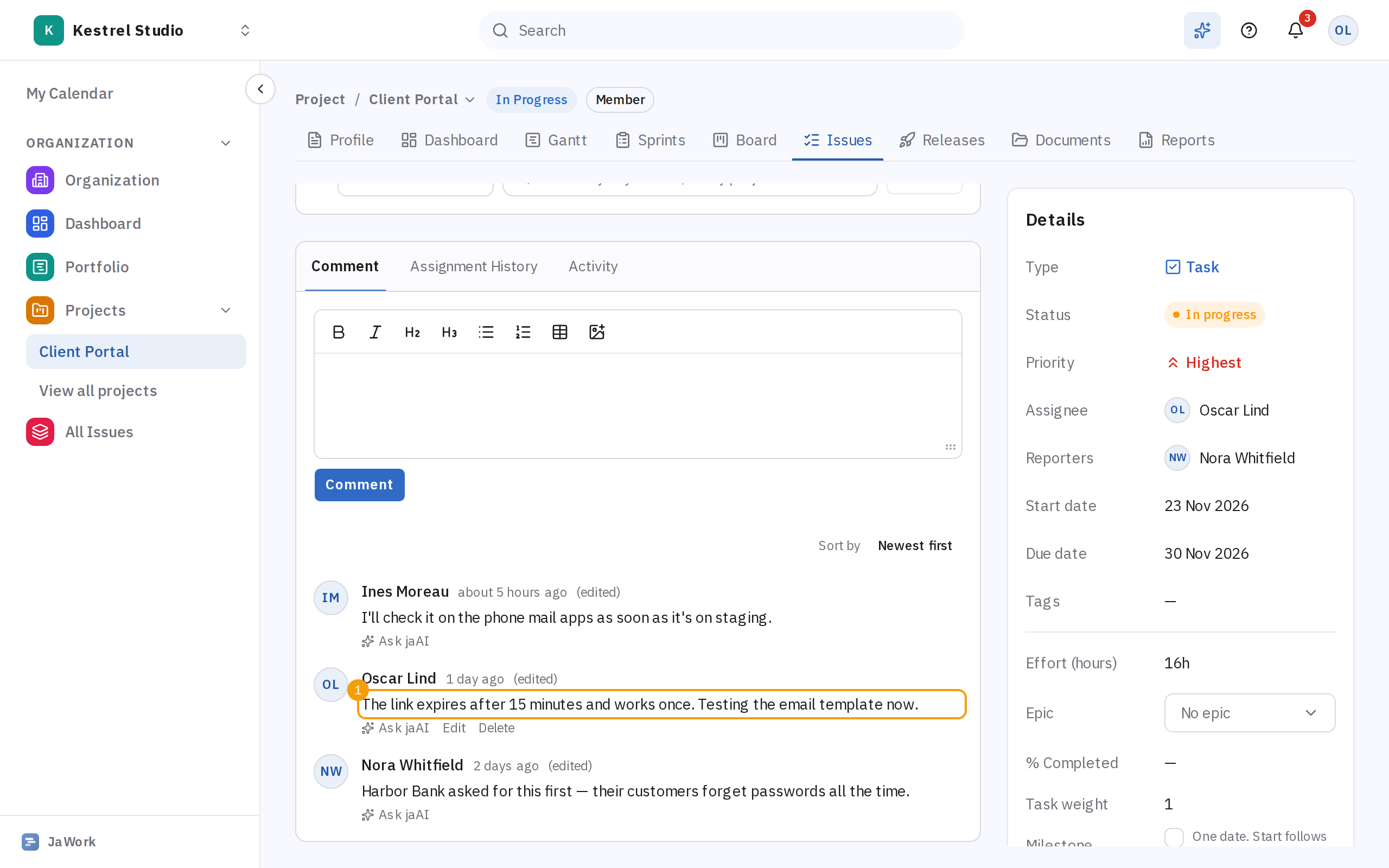
Write a comment
- Open the issue and scroll to the Comment tab.
- Type in the box. The toolbar has bold, italic, headings, lists, a table and pictures.
- Click Comment.
Your comment appears in the list below, newest first. Change the order with Sort by.
While you write a long comment, the toolbar stays at the top as you scroll.
Move a picture in a comment
Paste or add a picture, then drag it to another place in the text — by the ⋮⋮ handle at its top left or by the picture itself. A blue line shows where it will land, and the picture keeps its size. With the picture selected, Alt+↑ and Alt+↓ move it up or down one block.
If you leave before sending
If you have typed a comment and leave without sending it — Escape, closing the issue or going to another page — JaWork asks Discard your comment? Keep editing takes you back to it; Discard throws it away. Leaving while you change one of your comments asks Discard your changes to the comment?
Mention a teammate
Type @ and the first letters of a name, then pick the person. They get a notification that you mentioned them, with a link to the issue.
Change or delete your comment
Under your own comment, click Edit or Delete. An edited comment is marked “(edited)”.
Ask jaAI about a comment
Every comment has Ask jaAI under it. Click it and jaAI explains the comment or answers a question about it, using the issue as context.
Attach files
Open the Attachments tab, above the comments, to add files to the issue or open ones already there.
- Click Attach files.
- Choose one file or several — up to 10 at a time. You can also drag files from your computer onto the tab: it shows Drop files to attach, and dropping them attaches them.
- Each file shows its own progress in the list, two uploading at a time in the order you picked them, and it joins the list when it is done.
If one file fails, the others still upload. It stays in the list with the reason and Retry. When the last file is done, JaWork says which files weren’t attached and why — for example “2 of 5 files weren’t attached: big-video.mp4 is over 25 MB; …”. If you pick more than 10, the first 10 go and JaWork says how many were left out.
A project’s Documents work the same way: Create › Attach files, or drop files on the list, and they go into the folder you have open. When you attach a single file there, JaWork asks for its note first.
Look through the pictures
Click a picture in the list to see it at full size. If the list has more pictures, step through them:
- Click ‹ or › beside the picture, or press ← and →. On a phone, swipe.
- The top shows the picture’s name, size, Download and where you are, such as “2 / 5”.
- With 3 or more pictures, thumbnails run under the picture. Click one to go to it.
- The arrows stop at the first and last picture. Each picture opens at 100%, the right way up.
- PDFs, sheets and other documents aren’t in the run; they open on their own.
- Press Escape to close.
How large a file can be
Each file can be up to 25 MB. That goes for files on the Attachments tab and for pictures you paste, drop or add in a comment.
A larger file isn’t sent. JaWork tells you at once, with its size — for example “plans.pdf is 26.4 MB — files can be up to 25 MB”. If you added several files together, the others still upload. To share something larger, compress it or split it into parts. Web pages, scripts and SVG files can’t be attached, because a browser would open them as a page.
If your connection drops while a file is uploading, JaWork says “The upload didn’t finish — try again”. Nothing is saved, so click Retry.
Tip: Assignment History and Activity, beside Comment, show who the issue was assigned to over time and every change made to it.
Was this helpful?
Thank you — it helps us improve the guides.
Still stuck? The assistant answers from these guides, and a person takes over when it can't.
Chat with us