User Guide · Getting started
Your name, photo, theme and notifications
1 min read · Updated
Your settings live on one page. Open it from your initials at the top right, then Account settings.
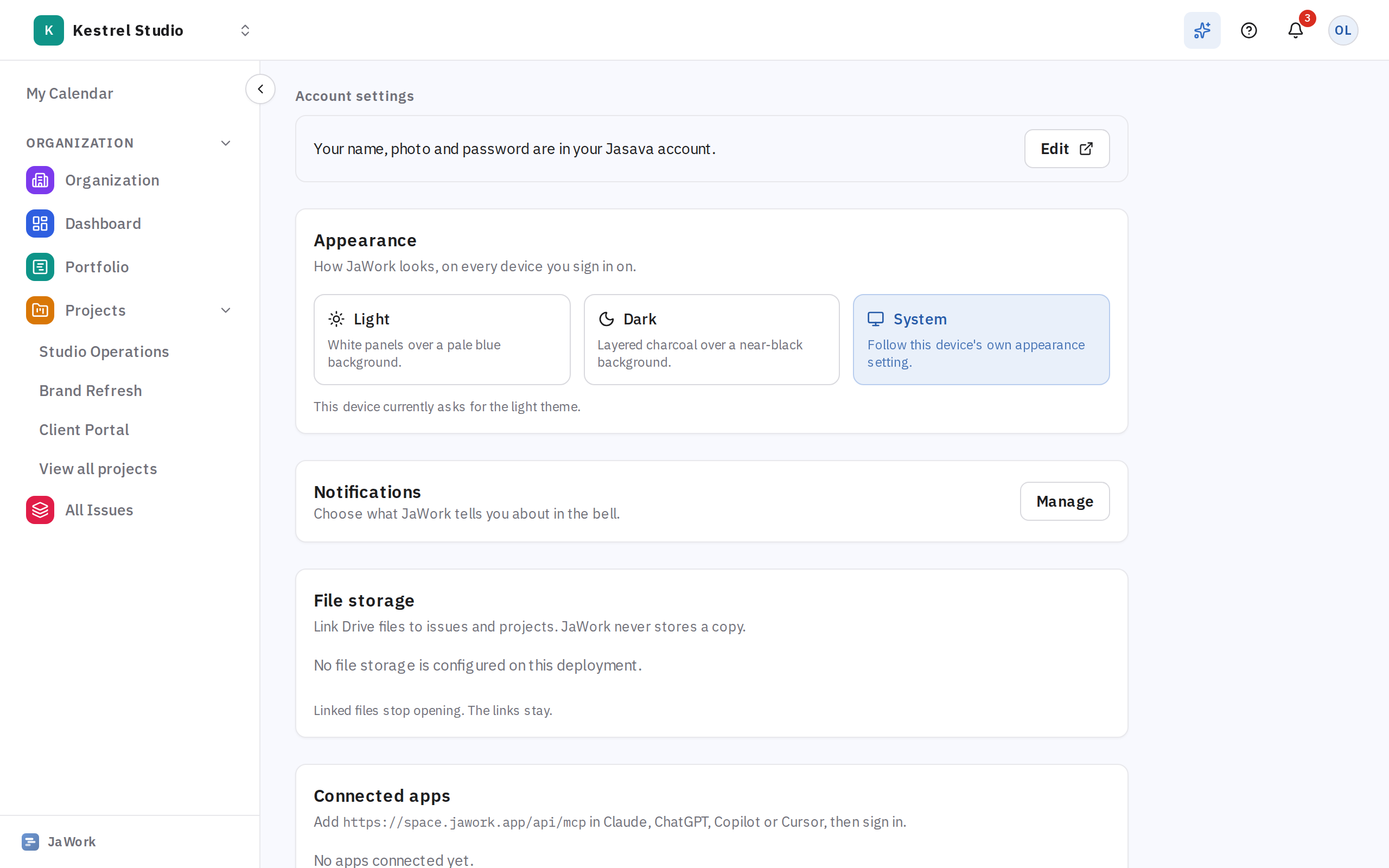
Your name, photo and password
You sign in to JaWork with your Jasava account, the same account you use for Jasava’s other products. Your name, photo and password are kept there.
- On Account settings, find “Your name, photo and password are in your Jasava account.”
- Click Edit. Your Jasava account opens in a new tab.
- Make the change and save it there. JaWork shows it the next time a page loads.
Light, dark or the same as your device
Under Appearance, choose:
- Light — white panels over a pale blue background.
- Dark — charcoal panels over a near-black background.
- System — follows your device’s own setting, so JaWork turns dark when your phone or computer does.
Your choice follows you to every device you sign in on.
What the bell tells you about
- Under Notifications, click Manage.
- Turn on the kinds of notification you want, and turn off the ones you don’t.
Tip: You can open the same page from the bell itself: click Notification settings at the bottom of the list.
Read more about the bell and your notifications.
Was this helpful?
Thank you — it helps us improve the guides.
Still stuck? The assistant answers from these guides, and a person takes over when it can't.
Chat with us