User Guide · The board
Filter the board
1 min read · Updated
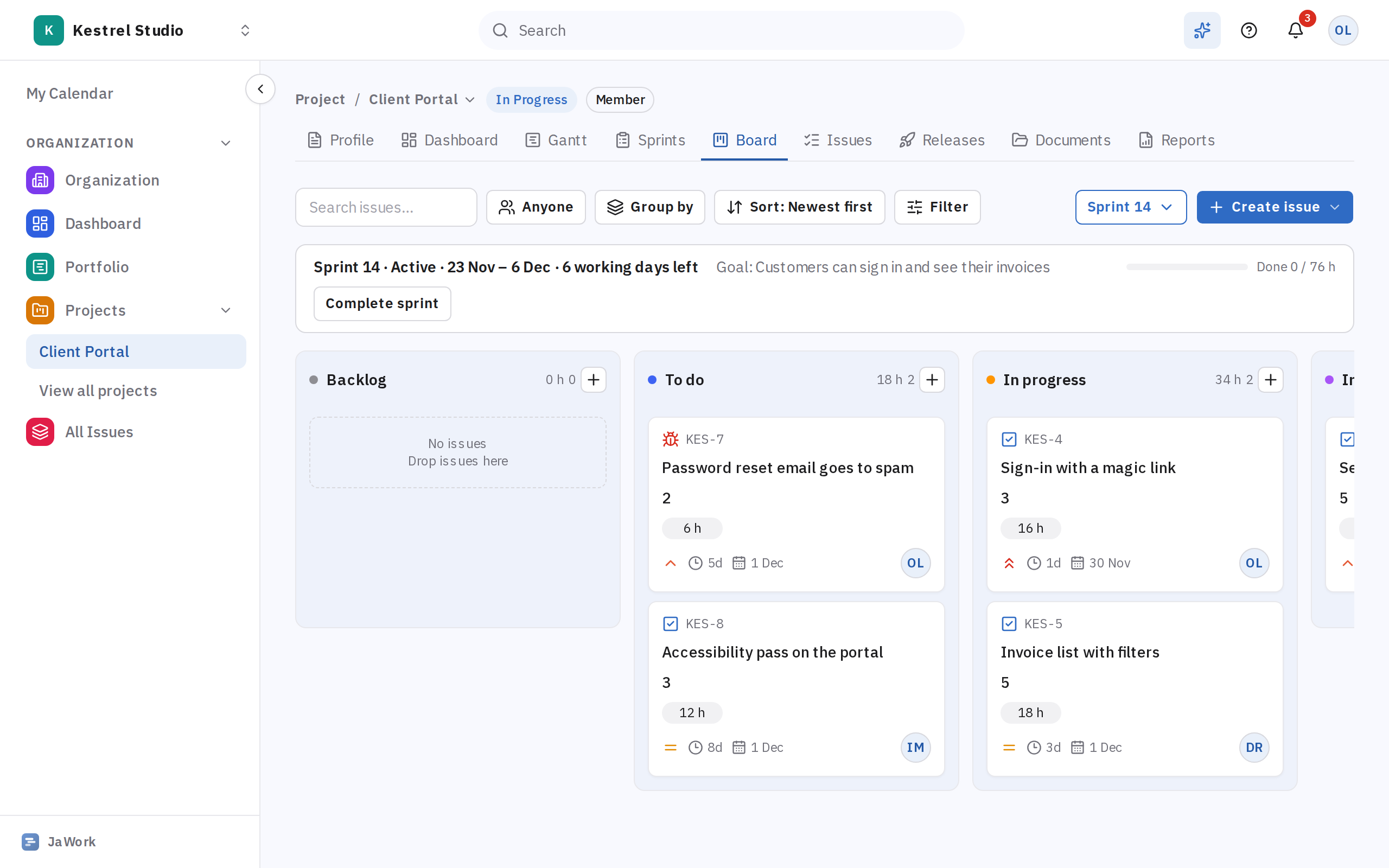
A busy board can hold dozens of cards. The bar above the columns narrows it down.
Search
Type part of a title or a key, such as KES-7, in Search issues…. Only matching cards stay on the board.
Show one person’s cards
- Click Anyone.
- Pick yourself, a teammate, or Unassigned.
The board now shows only those cards. Click again and choose Anyone to see everyone’s.
Filter by a field
- Click Filter.
- Choose a field, such as priority, type, tag or a custom field, and the values you want.
The filter stays while you move around the project, and the button shows that a filter is on.
Sort the cards
Click the sort button, for example Sort: Newest first, and choose another order. The cards in every column follow it.
Switch sprint
When your project plans in sprints, the sprint button at the top right, such as Sprint 14, chooses which sprint’s cards the board shows.
Tip: The Issues tab has the same search, Anyone and Filter, for when you would rather work in a list.
To split the board into rows by person or priority, read swimlanes.
Was this helpful?
Thank you — it helps us improve the guides.
Still stuck? The assistant answers from these guides, and a person takes over when it can't.
Chat with us