User Guide · Issues
Edit an issue — assign, priority, dates, subtasks and links
3 min read · Updated
Click an issue anywhere in JaWork — on the board, in a list or in a notification — to open its page. Everything about the issue is there.
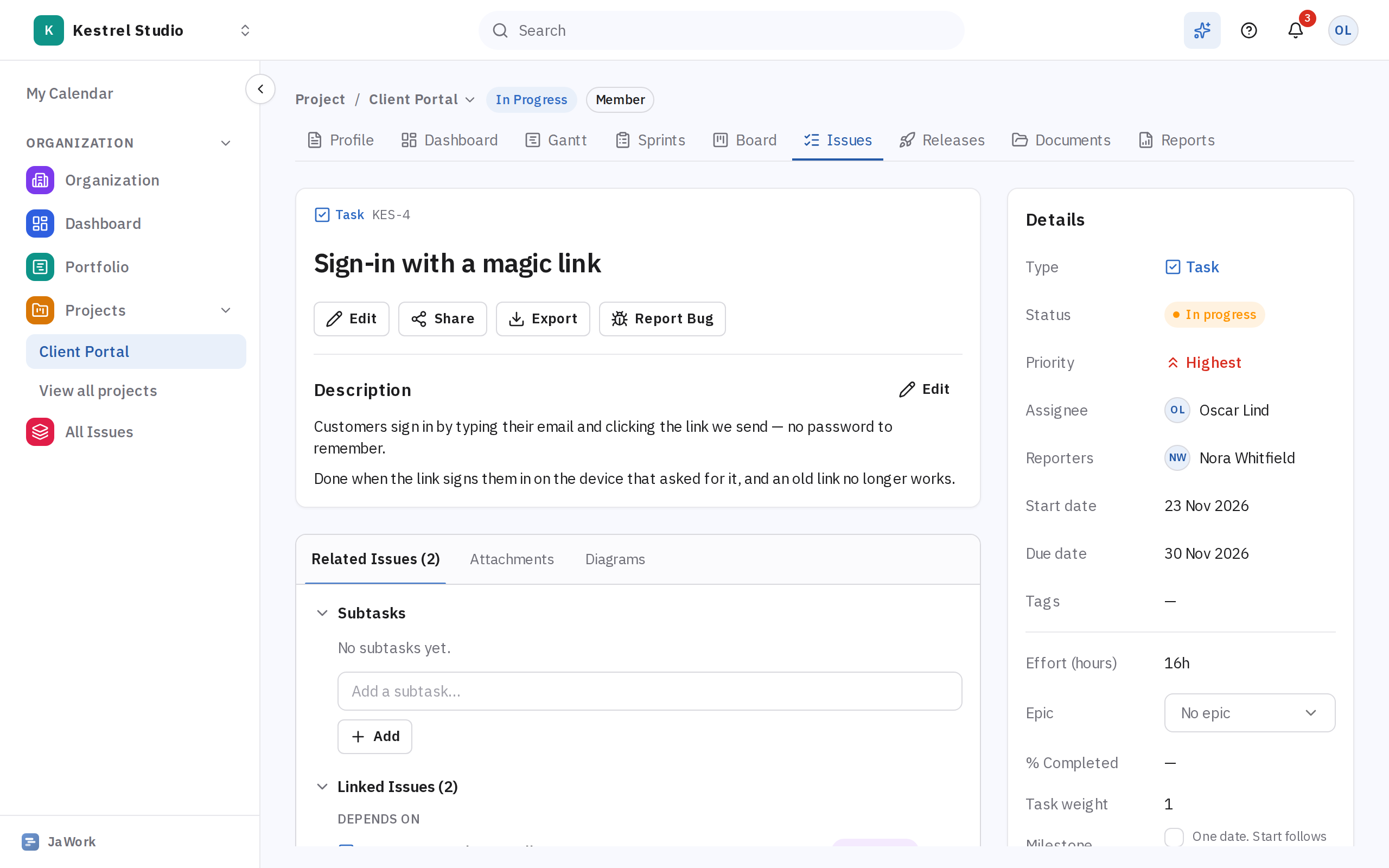
On a computer’s wide screen, the issue and its Details scroll separately: the issue on the left, the details on the right. The details stay in view while you read or write a long description.
Change the details
- On the issue page, click Edit under the title.
- Change the Status, Priority, Assignee, Start date, Due date or any other field.
- Save. The Details panel on the right shows the new values.
The Details panel also shows who reported the issue, its effort in hours, its epic, how far it is done and any custom fields your project has.
Write the description
Click Edit beside Description. While you write, its toolbar — bold, italic, headings, lists, a table and pictures — stays at the top as you scroll, and Save and Cancel stay at the foot of the editor.
To move a picture to another place in the text, drag it by the ⋮⋮ handle at its top left (it shows when you point at the picture), or drag the picture itself. A blue line shows where it will land. The picture keeps its size. With the picture selected, Alt+↑ and Alt+↓ move it up or down one block.
If you leave with unsaved changes — Cancel, Escape, closing the issue or going to another page — JaWork asks Discard your changes to the description? Keep editing takes you back; Discard throws the changes away.
Break it into subtasks
- Under Related Issues, find Subtasks.
- Type in Add a subtask… and click Add.
Each subtask is an issue of its own, with its own assignee and status.
Link related issues
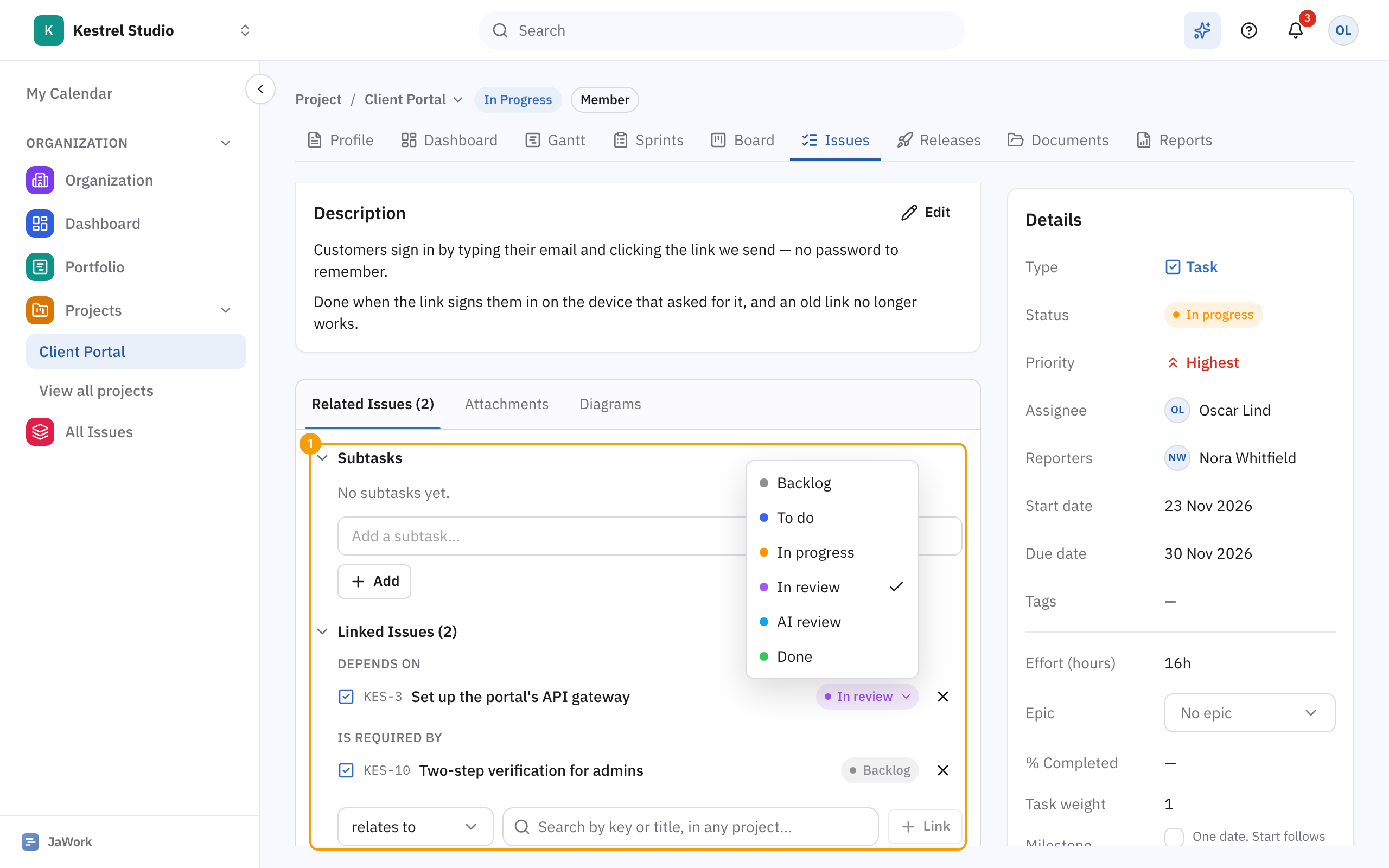
Linked Issues shows how issues depend on each other, such as Depends on and Is required by.
- Choose how the issues relate, for example relates to.
- Search by key or title, in any project.
- Click Link.
To remove a link, click the × at the end of its row.
Change a subtask’s status from the parent
You don’t have to open a subtask or a linked issue to move it on. In Related Issues, click its status at the end of the row, then pick the new status. The list shows the statuses of that issue’s own project, with the current one ticked, and the change is saved straight away. With the keyboard, press Enter on the status, use ↑ and ↓, and press Enter again; Escape closes the list.
If the last open subtask goes to a done status, JaWork asks whether the parent is done too. The status is a plain label, without the small arrow, when you can’t change that issue.
Other things you can do
- Share copies a link to the issue.
- Export saves the issue as a document.
- Report Bug creates a bug linked to this issue.
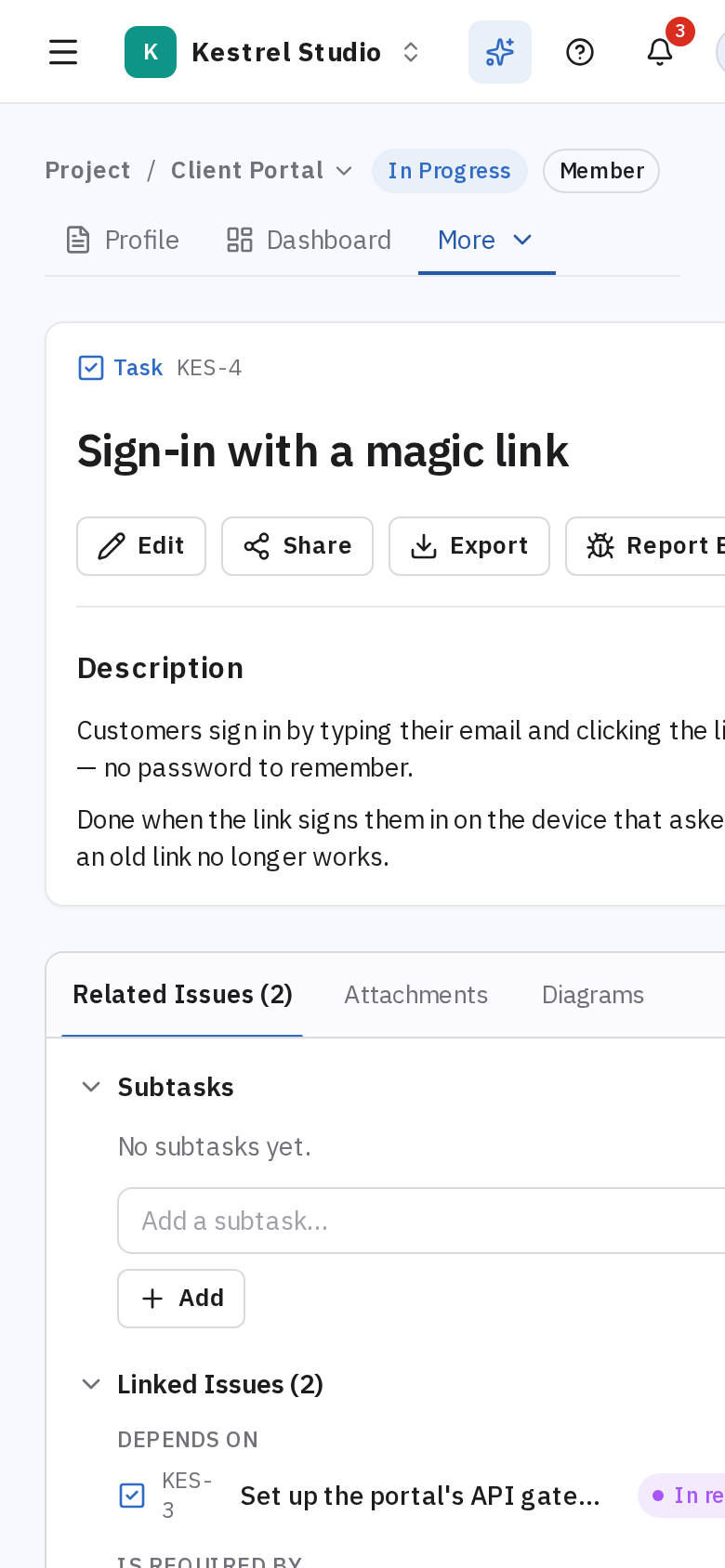
The issue page also works on a phone, with the details under the description.
Was this helpful?
Thank you — it helps us improve the guides.
Still stuck? The assistant answers from these guides, and a person takes over when it can't.
Chat with us