User Guide · Documents
Documents — notes, sheets, diagrams and mind maps
1 min read · Updated
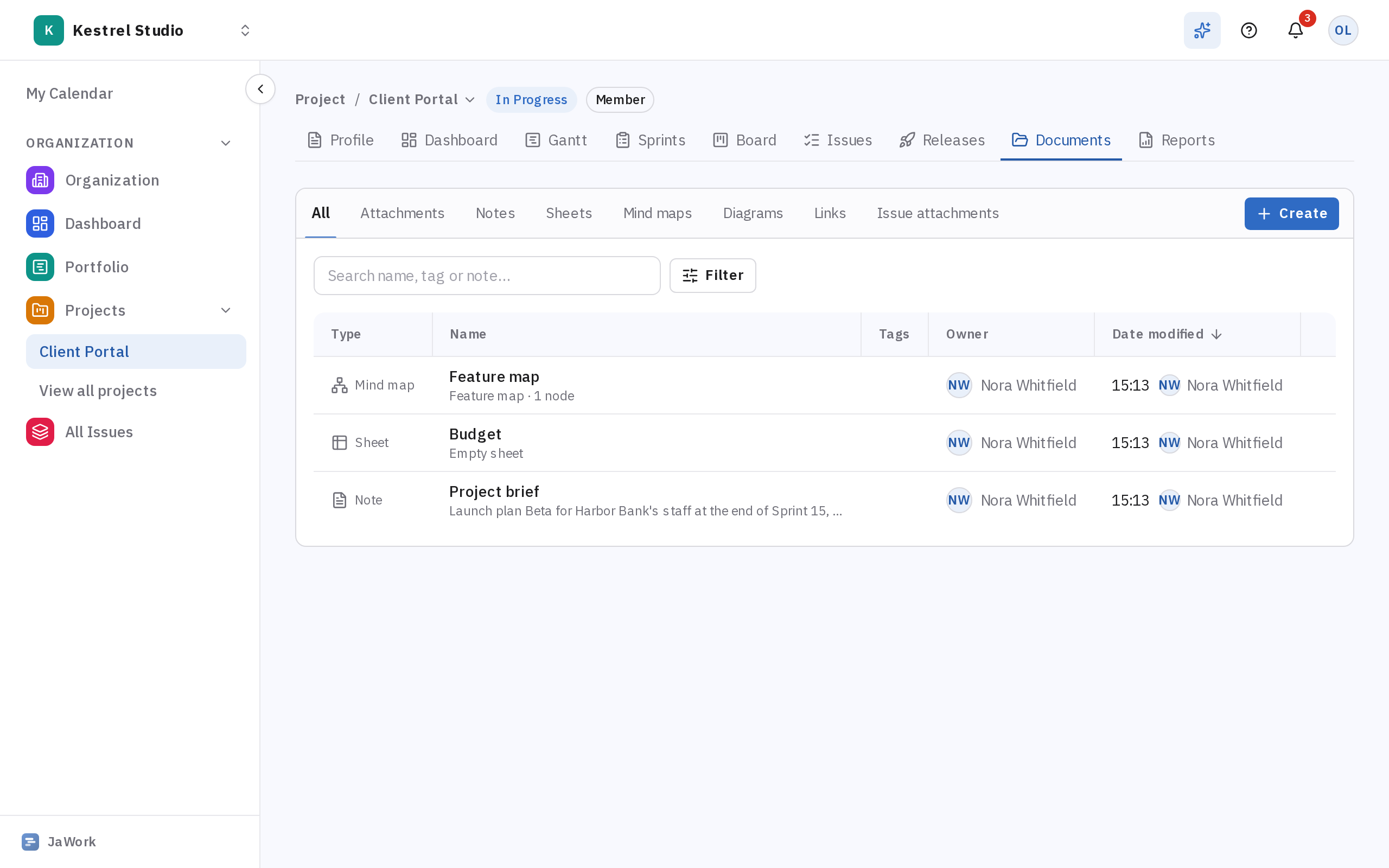
Every project has a Documents tab for the papers that go with the work: briefs, budgets, plans and diagrams. You write them in JaWork, so nobody hunts through email for the latest copy.
What you can keep here
The tabs along the top filter the list:
- Notes — rich text, like a short document, with tabs inside it.
- Sheets — a spreadsheet, for budgets and lists.
- Mind maps — ideas branching from one centre.
- Diagrams — flowcharts and drawings.
- Attachments and Links — files you upload and web links you keep.
- Issue attachments — every file attached to the project’s issues, in one place.
Create a document
- Open the project and click Documents.
- Click Create and choose the kind.
- Give it a name. It opens straight away for editing.
Find a document with Search name, tag or note…, or narrow the list with Filter.
Write a note
A note opens in a full editor, with headings, fonts, sizes, colours and alignment. The Tabs column on the left splits a long note into parts; click + to add a tab.
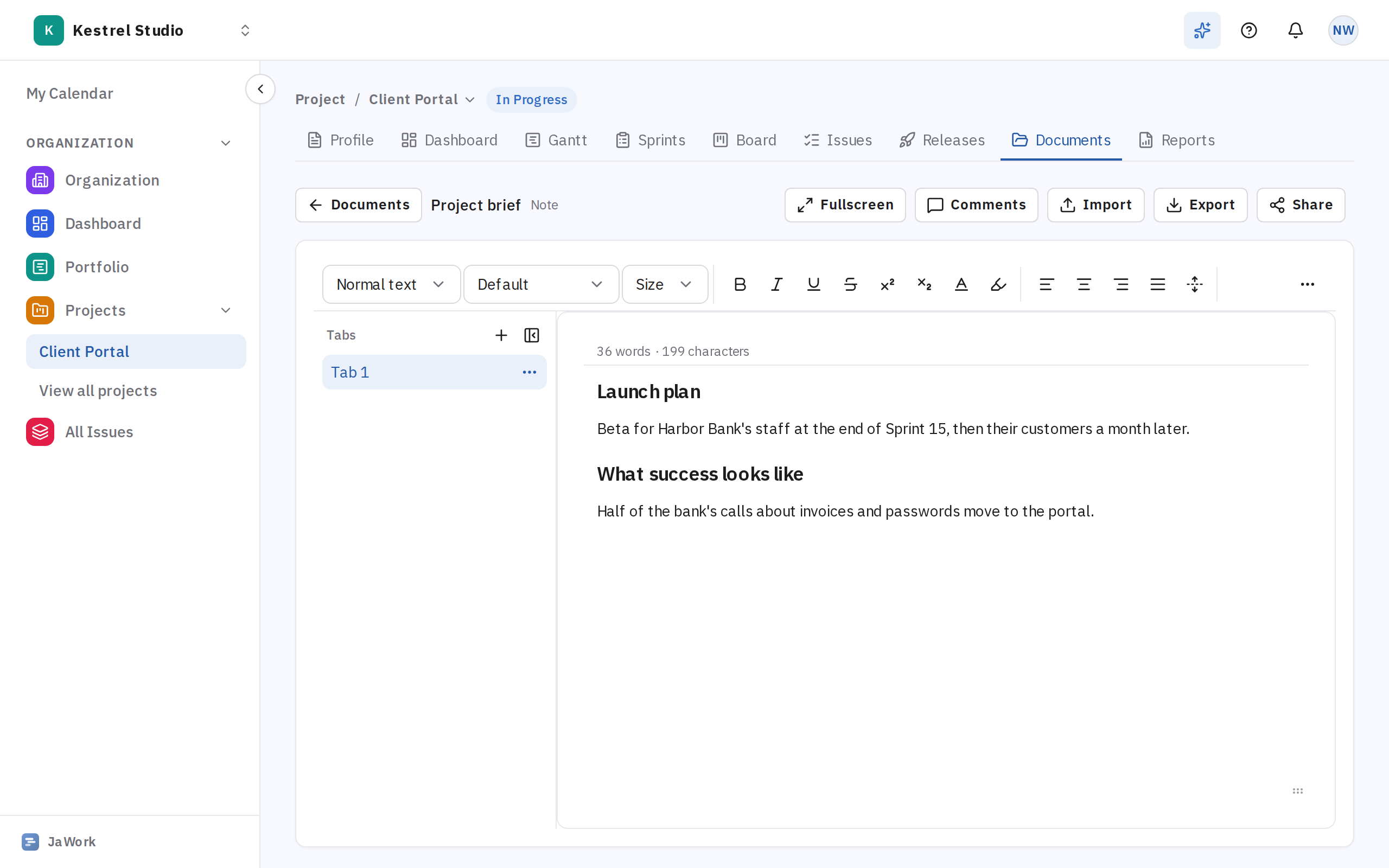
Along the top of an open document:
- Fullscreen hides everything else while you write.
- Comments opens the comments on the document.
- Import and Export bring a file in or save the document as one.
- Share chooses who else can open it.
Everyone editing a note at the same time sees each other’s changes as they type.
Tip: Click Documents at the top left of an open document to go back to the list.
Your project admin can also turn documents into ready-made reports.
Was this helpful?
Thank you — it helps us improve the guides.
Still stuck? The assistant answers from these guides, and a person takes over when it can't.
Chat with us