User Guide · Calendar
My Calendar
1 min read · Updated
My Calendar shows your own week: the events you created or were invited to, and the issues that are due on each day.
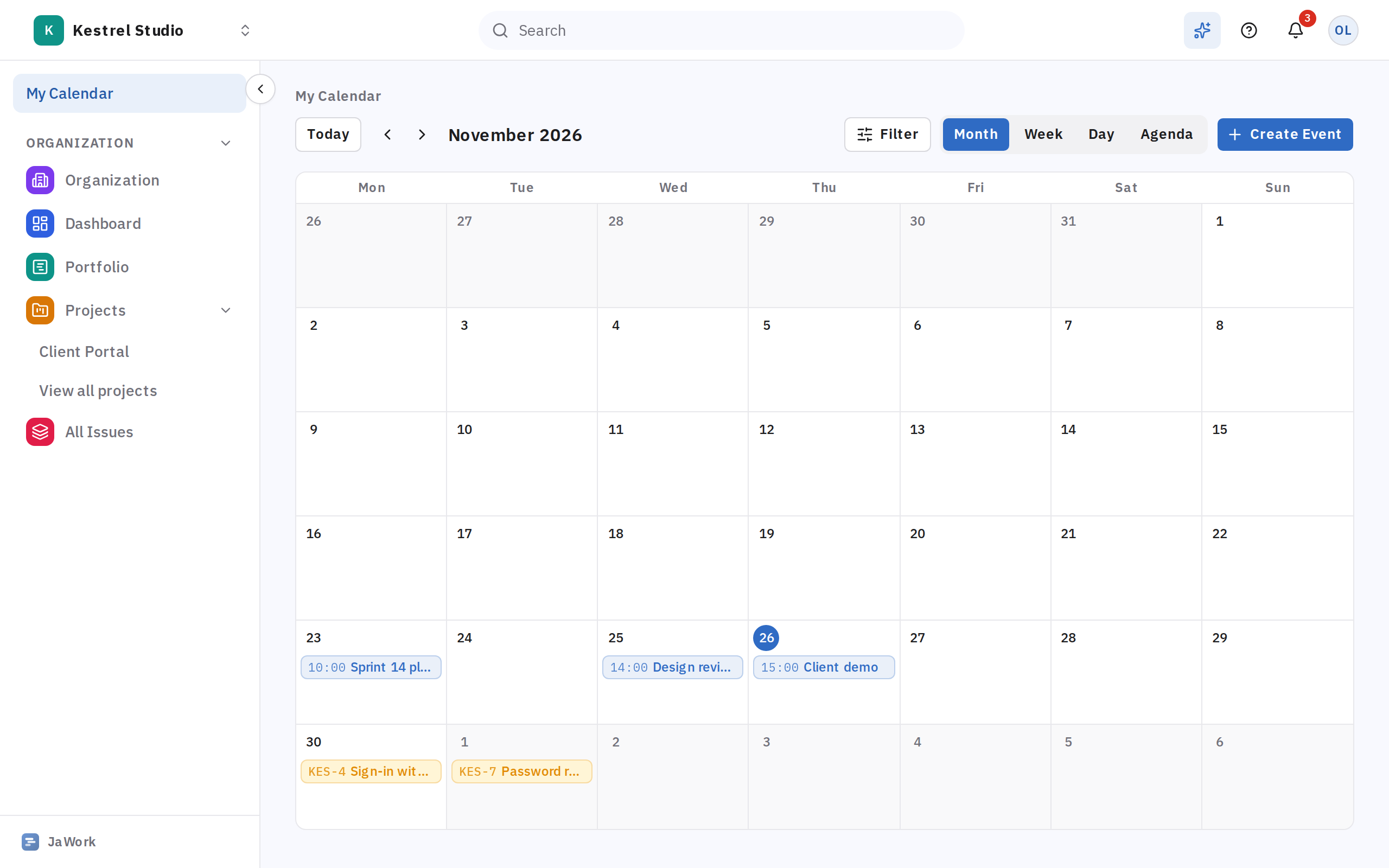
Open your calendar
Click My Calendar at the top of the menu on the left. It shows every organization you belong to, together.
- Events are blue, with their start time.
- Issues are orange, with their key, on their due date. Click one to open the issue.
Your calendar is personal. Nobody else sees your events unless you invite them, admins included.
Change the view
- Month, Week, Day and Agenda change how much you see.
- Today brings you back to today, and the arrows move back and forward.
- Filter chooses what is shown, for example only events or only issues.
Create an event
- Click Create Event.
- Give it a title, a date and a time.
- Add the people you want to invite. They get an invitation by email.
- Save.
To move an event, drag it to another day or time.
Tip: An event can repeat, for example every week, so a regular meeting only needs creating once.
Dates you change on the Gantt chart show up here too.
Was this helpful?
Thank you — it helps us improve the guides.
Still stuck? The assistant answers from these guides, and a person takes over when it can't.
Chat with us