User Guide · Issues
Create an issue
1 min read · Updated
An issue is one piece of work: a task to do, a bug to fix, or a milestone to reach. Each issue gets a key from its project, such as KES-4, so anyone can find it.
Create an issue
- Open the project and go to Board or Issues.
- Click Create issue. The new issue page opens.
- Type a Title. It is the only field you must fill in.
- Add a Description if it helps. The toolbar has bold, italic, headings, lists, a table and pictures.
- On the right, choose the Type (for example Task or Bug), the Status, the Priority and the Assignee.
- Add a Start date and a Due date if the work has them, and any Tags.
- Save the issue.
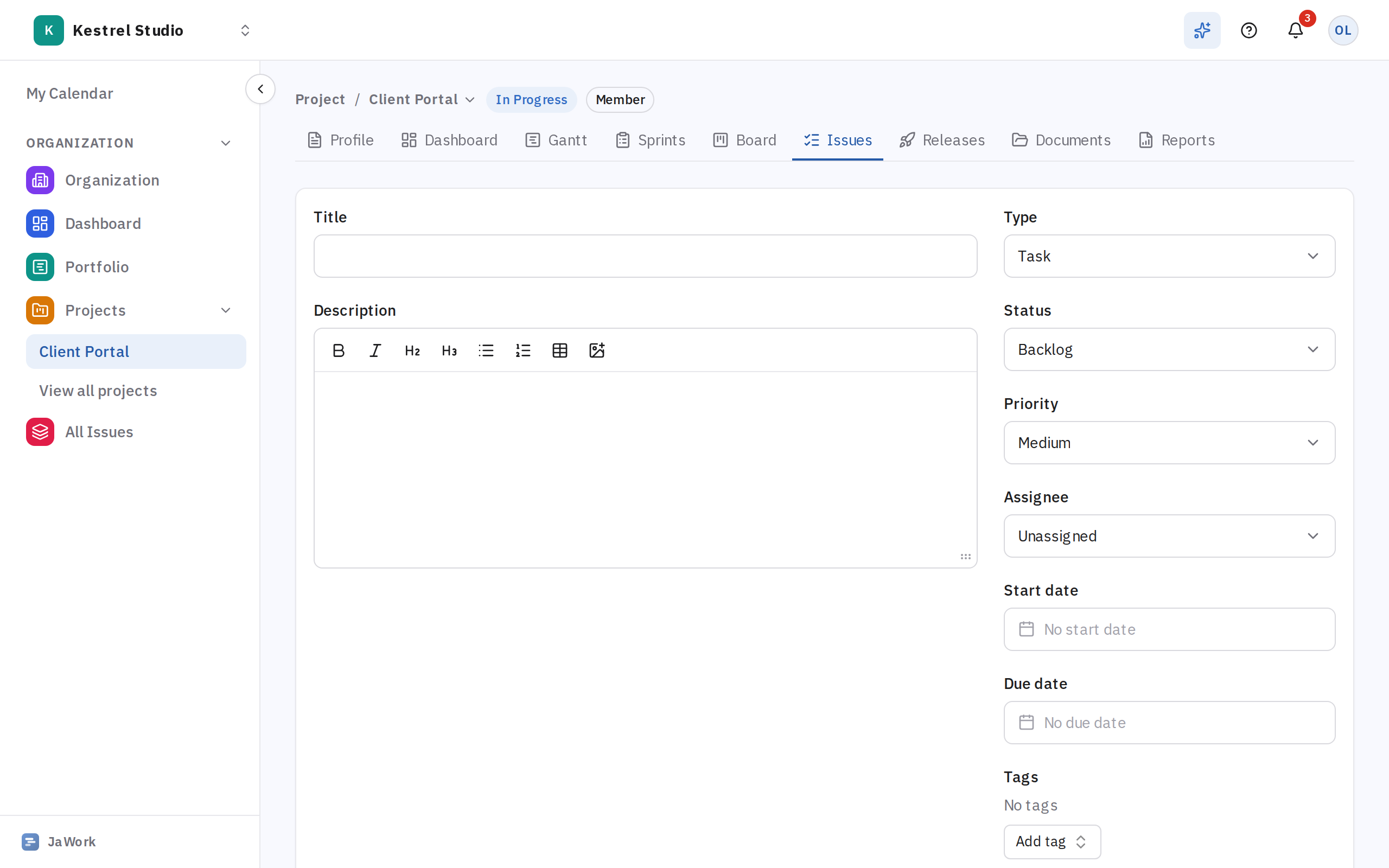
A new issue starts in the first column, usually Backlog, unless you pick another status.
Create an issue straight into a column
On the Board, each column has a + button beside its name. Click it to create an issue that starts in that column.
If you change your mind
If you have typed something and close the form — with ×, Cancel, Escape or a click outside it — JaWork asks Discard this issue? and says what you typed, such as a title and a description.
- Keep editing takes you back to the form. It is the default, and Escape chooses it too.
- Discard closes the form and throws away what you typed.
If you haven’t typed anything, the form simply closes.
Tip: If your project has custom fields, such as a client or story points, they appear on the same page under the usual fields.
Once the issue exists, you can assign it, set dates and add subtasks.
Was this helpful?
Thank you — it helps us improve the guides.
Still stuck? The assistant answers from these guides, and a person takes over when it can't.
Chat with us