User Guide · The board
Move cards on the board
1 min read · Updated
The board shows a project’s issues as cards in columns, one column per status. Moving a card to another column changes the issue’s status.
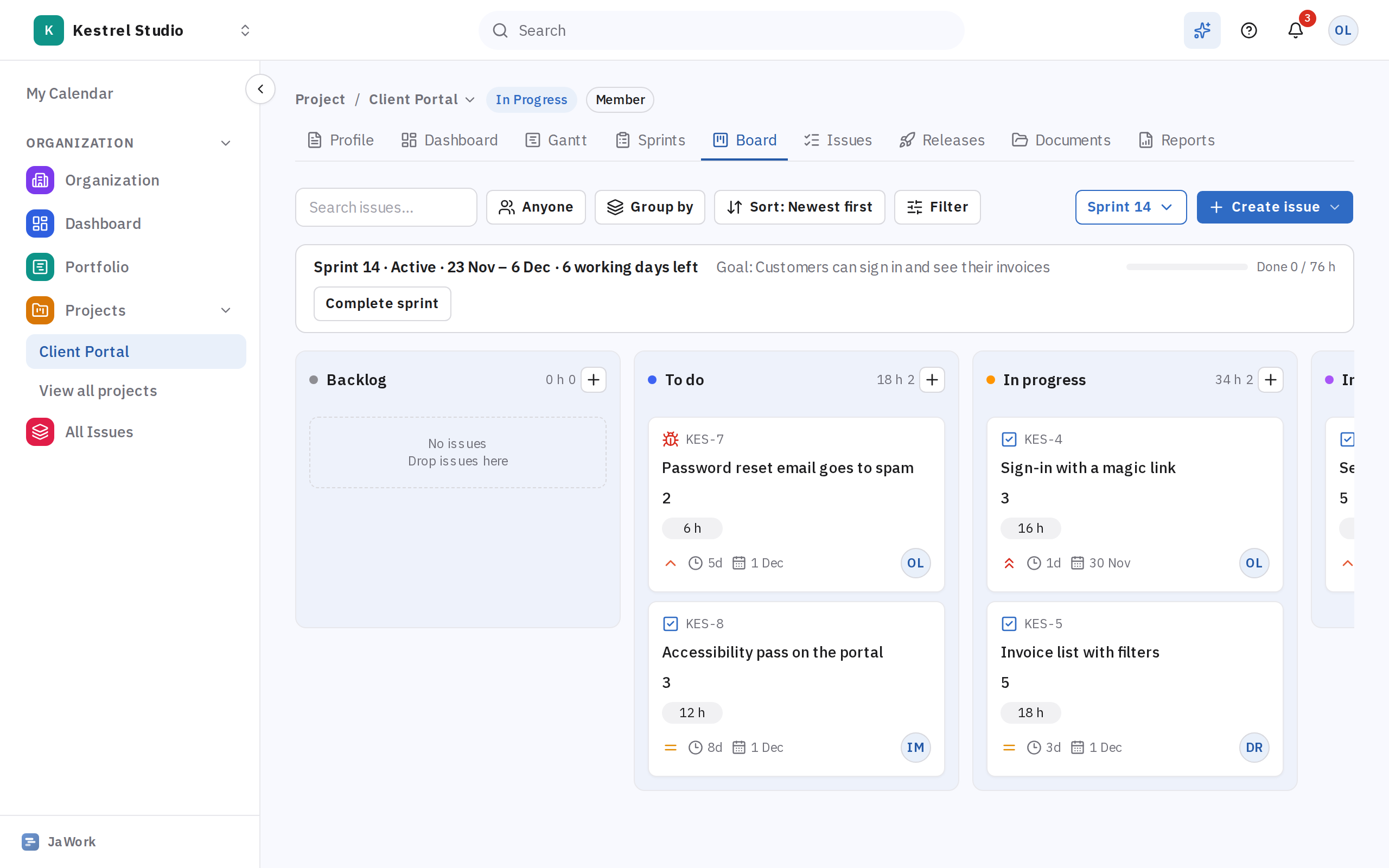
Move a card
- Open the project and click Board.
- Drag a card to another column and let go.
The issue’s status changes at once, and everyone looking at the board sees the card move. Some columns may only accept certain people; if you can’t drop a card, ask your project admin.
What a card shows
From top to bottom, a card shows:
- the issue type and key, such as KES-4;
- the title;
- custom fields your project shows on cards, such as story points;
- the effort in hours;
- the priority, how many days the card has been in its column, and the due date;
- the assignee’s initials. Click them to assign someone else.
Each column’s header shows its total hours and how many cards it holds. Click + beside a column’s name to create an issue in that column.
The sprint
When your project plans in sprints, the board shows the current sprint above the columns: its dates, the working days left, its goal and how much is done. Choose another sprint from the sprint button at the top right.
When the work is finished, click Complete sprint.
Tip: If a card is hard to find, type part of its title or key in Search issues….
Next, filter the board to see only what matters to you.
Was this helpful?
Thank you — it helps us improve the guides.
Still stuck? The assistant answers from these guides, and a person takes over when it can't.
Chat with us