User Guide · jaAI
Ask jaAI
3 min read · Updated
jaAI is an assistant built into JaWork. It reads the page you are on — a board, an issue, a dashboard — and answers questions about it in plain words. It can also read a picture you add and turn it into a card.
Open jaAI
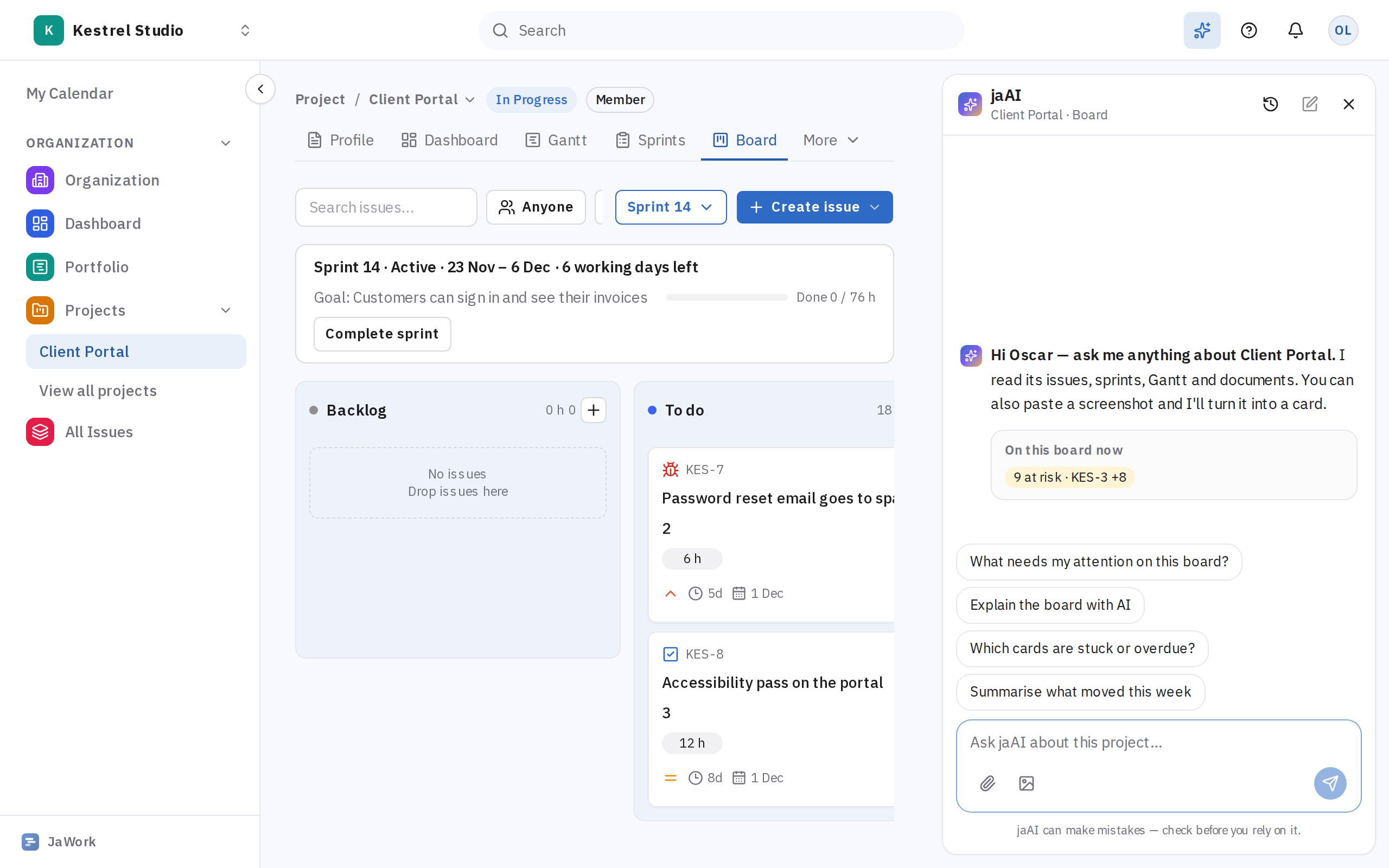
Click the sparkle button at the top right. jaAI opens in its own box beside the page, under the header. The page narrows to make room, so nothing is covered and you can keep working. On a phone, jaAI opens full screen.
The place jaAI is looking at shows under its name, for example Client Portal · Board. jaAI stays open as you move from page to page, until you close it.
What it shows first
jaAI opens on the conversation, ready for you to type.
- The first message greets you and names what jaAI is looking at.
- On a board, a line of chips follows: On this board now, with what needs attention — for example issues with no assignee, at risk or overdue. Click a chip to see its issues. A chip with nothing in it is greyed.
- Up to four suggested questions sit just above the box, among them Explain the board with AI. They go away once you start the conversation.
Ask a question
- Click Explain the board with AI for a short summary of the page.
- Or click one of the suggested questions.
- Or type your own question in the box at the bottom and press Send.
jaAI answers in the box, with links to the issues it talks about. It can also propose a change, such as creating an issue or posting a comment, and makes it only when you confirm.
Add a picture
jaAI can read pictures, such as a screenshot of an error or a photo of a whiteboard.
- Click 📎 or 🖼 beside the box, paste a picture with Ctrl+V (⌘+V on a Mac), or drag pictures onto the box.
- Each picture shows as a small thumbnail above the box. Click its × to take it out.
- Type what you want to know and press Send.
You can add PNG, JPEG, WebP or GIF pictures, up to four in one message and 10 MB each. On a phone, 📎 offers the camera and your photo library. Only you can see the pictures you add, and they stay in the conversation’s history.
Turn a picture into a card
Add a screenshot and ask, for example, “make a card for this bug”. jaAI proposes a card: its type, priority, title, a description written from the picture and your words, the column it goes in and the pictures it will attach.
- Click Create card to create the issue. The pictures are attached to it.
- Click Edit to open the create form filled in, change what you need, and create it from there. The pictures are attached too.
Nothing is created until you press one of them.
Tip: Every comment has Ask jaAI under it, to ask about that comment straight away.
The buttons at the top of the box show your past conversations, start a new one and close the box.
Questions to jaAI use your organization’s AI credits, but the box shows no costs. Admins see what was used under Organization › Billing › AI credits — read how AI credits work.
Was this helpful?
Thank you — it helps us improve the guides.
Still stuck? The assistant answers from these guides, and a person takes over when it can't.
Chat with us