User Guide · Getting started
Find your way around
2 min read · Updated
JaWork keeps everything for one organization in one place: its projects, their issues, boards and plans, and the people who work on them. This page shows you where each part lives.
The menu on the left
- My Calendar at the top is your own calendar: your meetings and the issues due for you.
- Under Organization you find Organization (members, work calendar, billing), Dashboard (charts across every project) and Portfolio (all projects on one timeline).
- Projects opens to show the projects you work in. Click a name to open it, or View all projects to see the full list.
- All Issues lists every issue you can see, in every project.
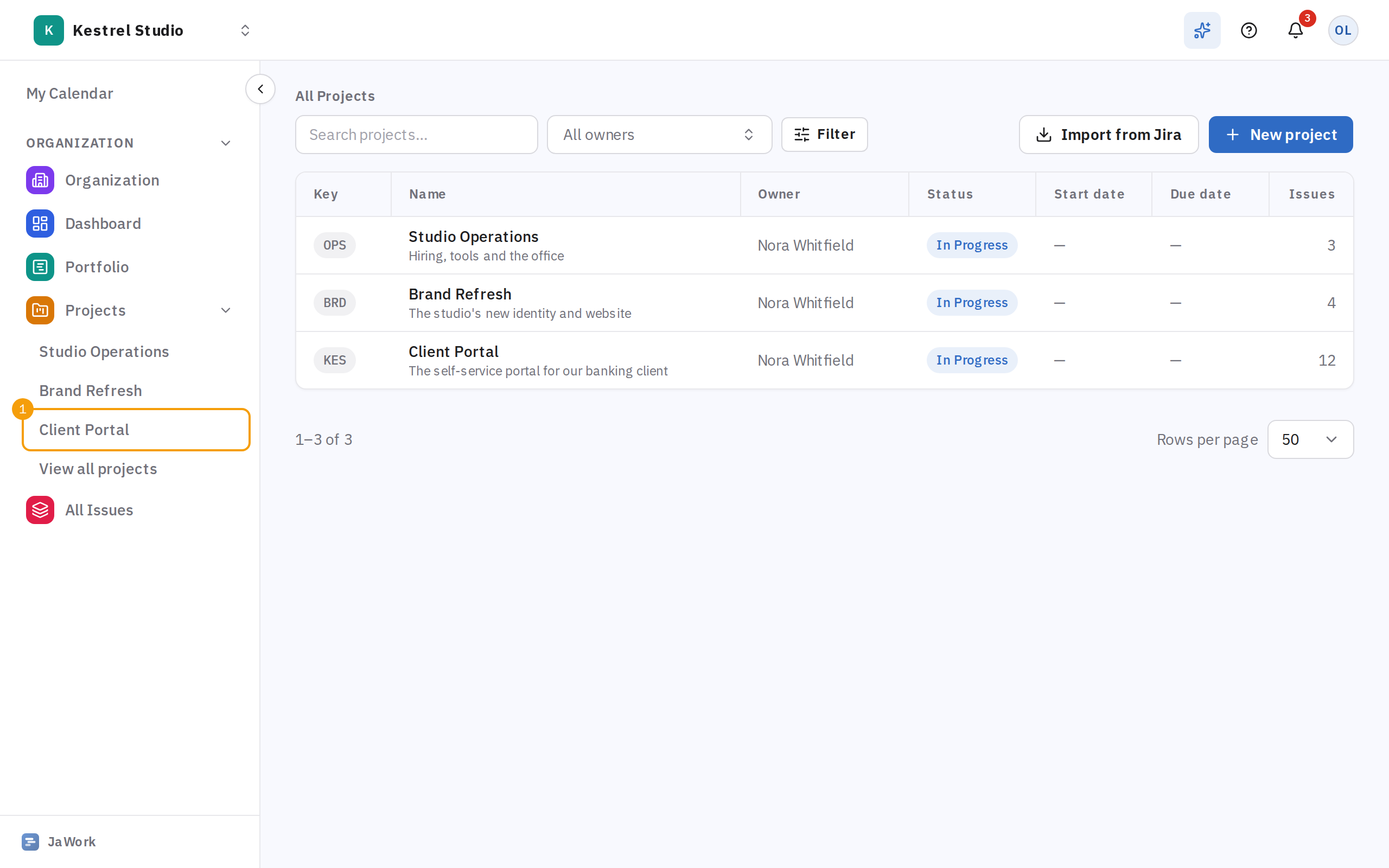
The arrow at the top of the menu folds it away when you want more room.
Inside a project
A project has a row of tabs: Profile, Dashboard, Gantt, Sprints, Board, Issues, Releases, Documents and Reports. Most days you will live in Board and Issues.
An issue’s page
On a computer’s wide screen, an issue’s page has two scrolling areas: the issue itself on the left — its title, description, attachments, subtasks, links and comments — and its Details on the right. Each scrolls on its own, so the details stay in view while you read a long description. On a phone or in a narrow window, the two are stacked and scroll as one.
The top bar
- The organization’s name at the top left switches organization, if you belong to more than one.
- The Search box beside it, on a computer, searches your issues.
- The sparkle button opens jaAI, the assistant that answers questions about your work. It opens in its own box beside the page (full screen on a phone).
- The ? button is help for the page you are on: the Help Center articles about it, the User Guide and the Admin Guide, Ask jaAI, and Chat with support.
- Chat with support opens a chat with JaWork’s support without leaving the page. It answers questions about JaWork from this Help Center first, in your language, and a person can join the same chat when you need one — the chat asks who you are only then. For questions about your own projects and issues, ask jaAI. If the chat can’t open, the same item takes you to the contact form on jawork.app.
- jaAI and the support chat open in the same place on the right, one at a time: opening one closes the other, and jaAI keeps what you had typed in its box.
- The bell shows your notifications. A red number means some are unread.
- Your initials open your account: settings, Organization members (for the organization’s owner and admins), and sign out.
On a phone
JaWork works in your phone’s browser. The menu moves behind a button, and lists and boards fit the screen.
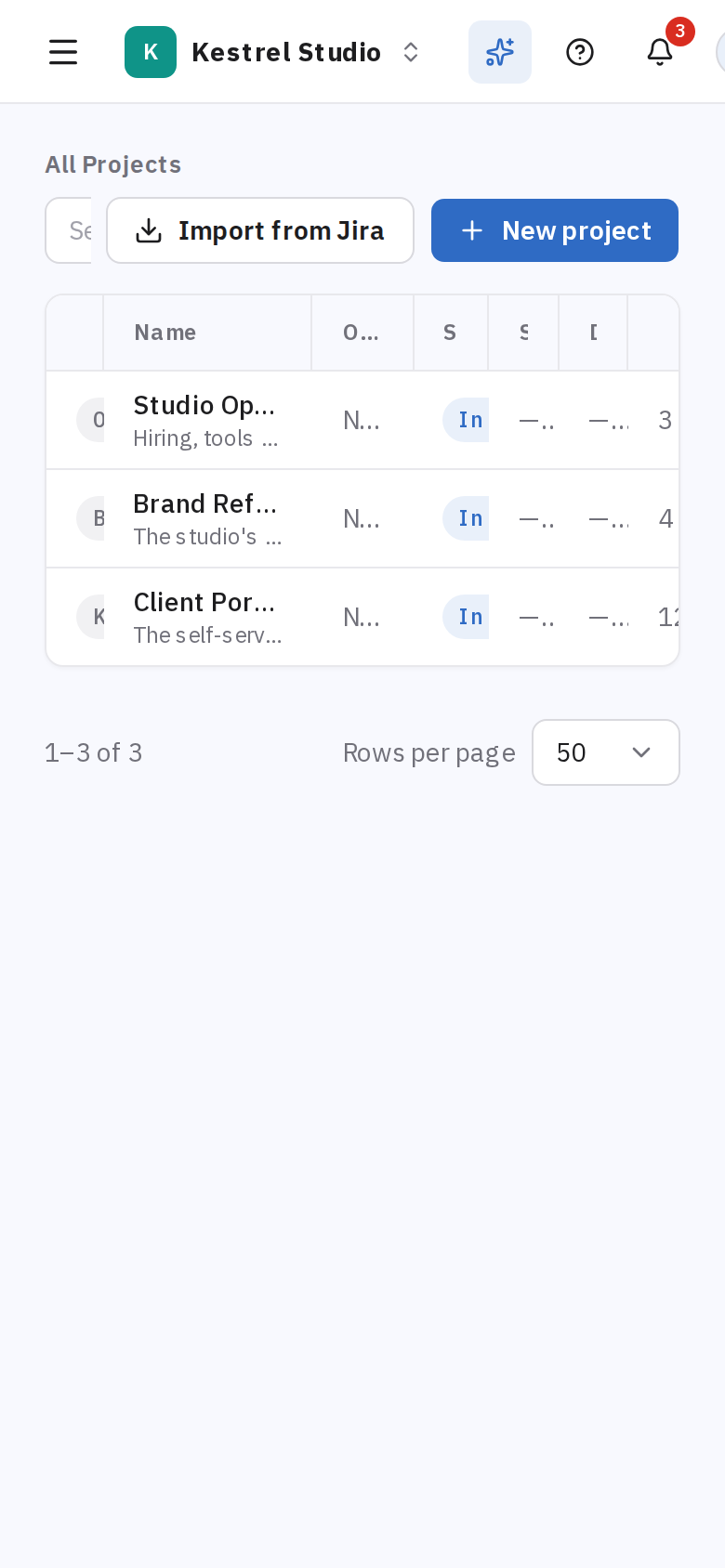
Next, set up your profile and notifications.
Was this helpful?
Thank you — it helps us improve the guides.
Still stuck? The assistant answers from these guides, and a person takes over when it can't.
Chat with us