Admin Guide · Projects
The project profile — details, members, documents and notifications
1 min read · Updated
Everything about a project, apart from its issues, lives on its Profile tab. Members see Details and Members; project admins see every tab.
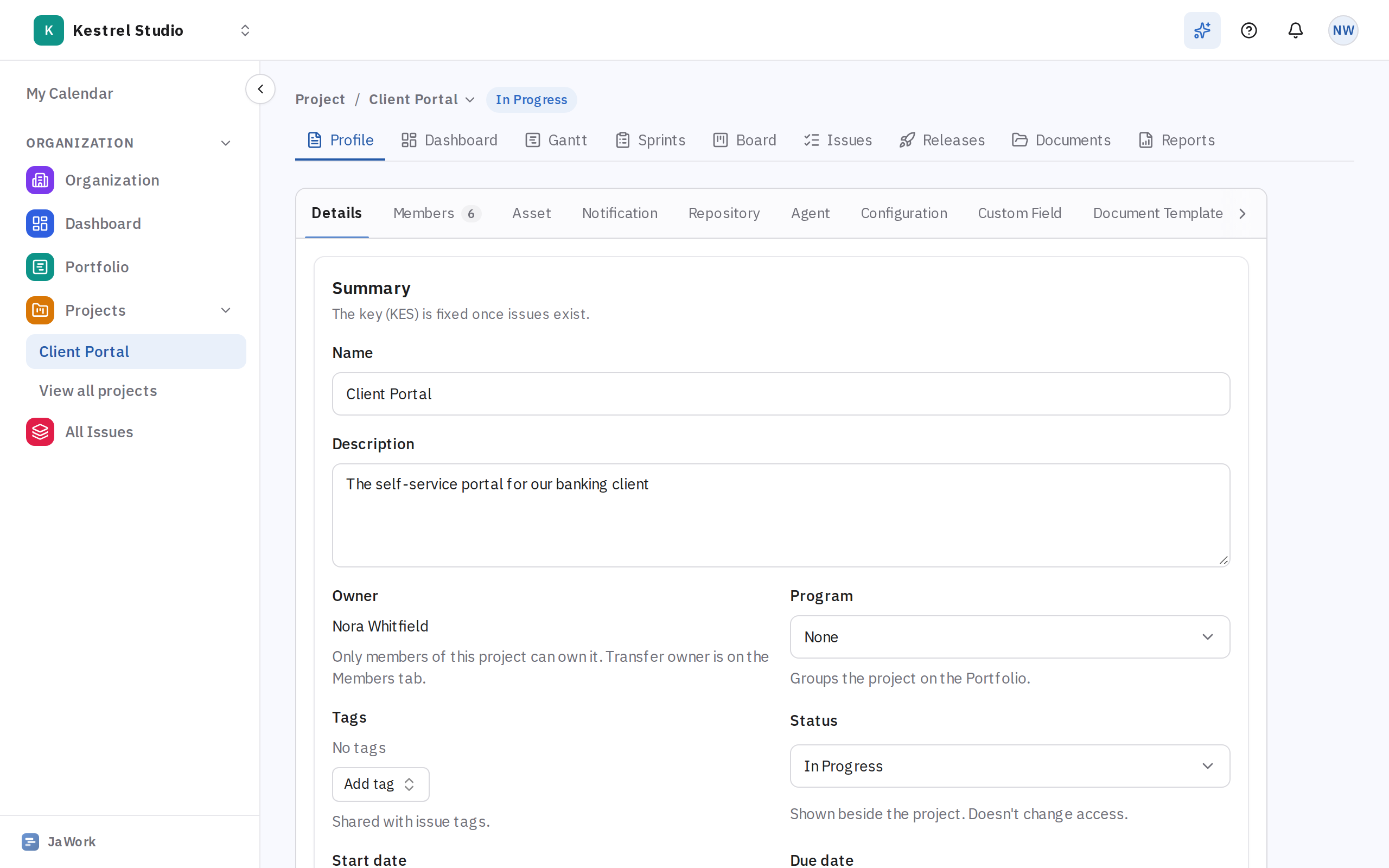
Details
- Open the project and click Profile. It opens on Details.
- Change the Name or Description.
- Choose a Program to group the project with others on the Portfolio.
- Set the Status — for example In Progress. It is shown beside the project’s name and doesn’t change who can open it.
- Add Tags, and the project’s Start date and Due date.
The Owner is shown here. Only a member of the project can own it; change the owner on the Members tab.
The other tabs
- Members — who is in the project and their role (Admin, Member or Viewer), each person’s job role, and the owner.
- Asset — hardware bought for the project, kept in a list.
- Notification — who is emailed when someone creates a task, a subtask or a bug in this project.
- Repository — connect the project’s code repository, so commits and pull requests that name an issue key show on the issue.
- Agent — the AI agent’s work in each column. See AI agents on board columns.
- Configuration — sprints on or off, who may edit issues, and automations. See automation rules.
- Custom Field — your own fields on issues. See statuses and custom fields.
- Document Template — upload Office documents the project uses as templates.
- Import — bring issues in from Jira. See importing from Jira.
Tip: The project’s key, such as KES, is fixed once the project has issues.
Who can do what in a project is explained in roles.
Was this helpful?
Thank you — it helps us improve the guides.
Still stuck? The assistant answers from these guides, and a person takes over when it can't.
Chat with us