Admin Guide · Projects
Create a project
1 min read · Updated
A project holds one stream of work: its issues, board, plan, documents and reports. Anyone in the organization can create one and becomes its owner.
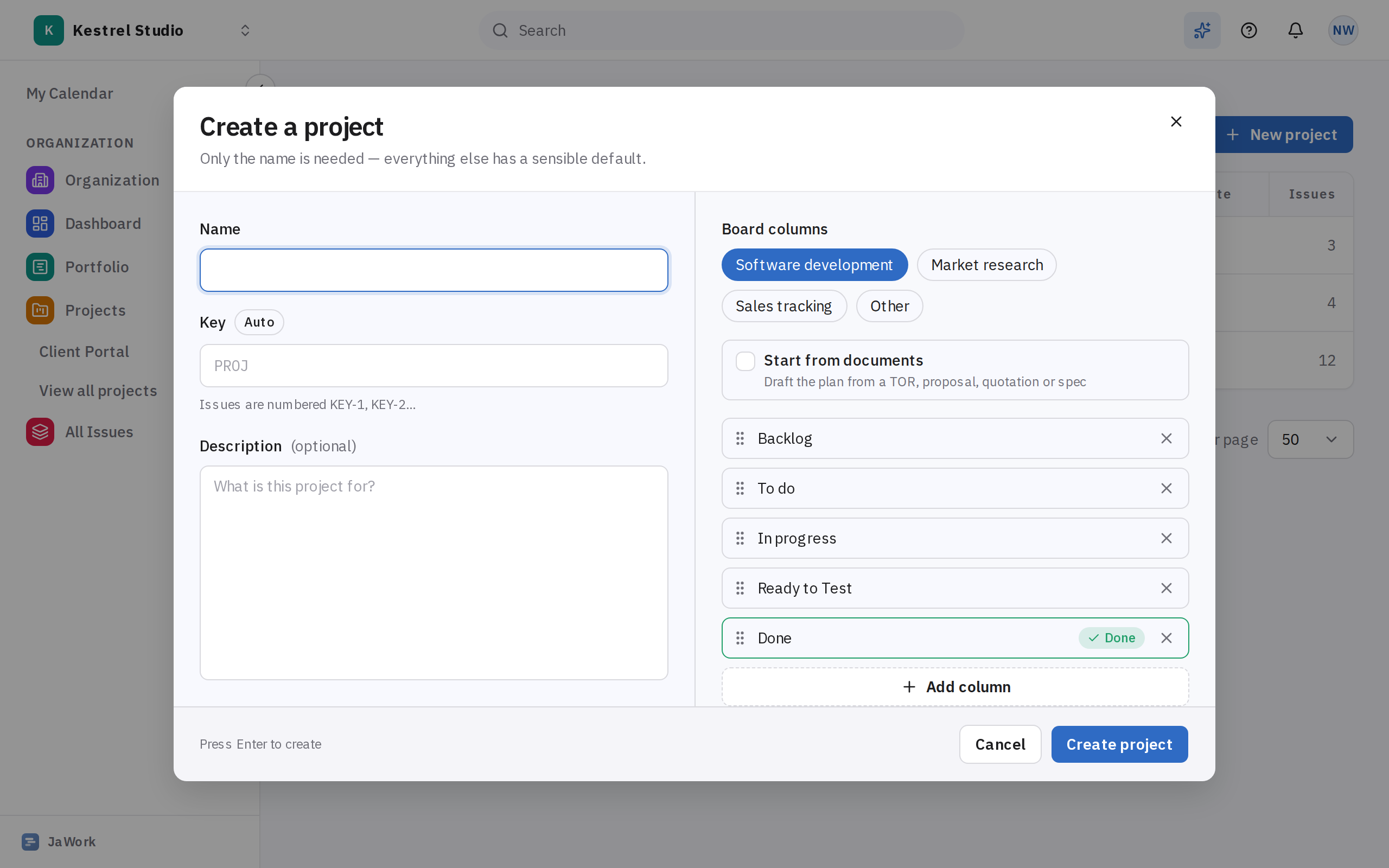
Create a project
- Click Projects in the menu, then View all projects.
- Click New project.
- Type the Name. It is the only field you must fill in.
- Check the Key. JaWork suggests one from the name; click Auto to type your own. Issues are numbered from it: KEY-1, KEY-2 and so on.
- Add a Description if it helps.
- Under Board columns, pick a starting set:
- Software development — Backlog, To do, In progress, Ready to Test, Done;
- Market research, Sales tracking, or Other.
- Rename, reorder or remove the columns, or click Add column. The column marked Done is where finished work goes.
- Click Create project, or press Enter.
The project opens on its board, with you as its owner and project admin.
Start from your documents
Tick Start from documents to draft the plan from a terms of reference, proposal, quotation or specification. JaWork reads the file and proposes the issues; you check them before anything is created. This uses AI credits.
Tip: The key is fixed once the project has issues, so choose it with care.
Coming from Jira? Import a Jira project instead of starting empty.
Was this helpful?
Thank you — it helps us improve the guides.
Still stuck? The assistant answers from these guides, and a person takes over when it can't.
Chat with us