Admin Guide · Your organization
Roles — in the organization, in projects and for costs
1 min read · Updated
JaWork has three kinds of role. Each answers a different question.
1. The JaWork role — what someone can do in the organization
Every person who uses JaWork is an Admin or a Member, chosen in the Jasava account. Admins manage the organization: its work calendar, job roles, tags, AI agents and billing. See Members.
2. The project role — what someone can do in a project
Each project has its own members, on the project’s Profile › Members tab. A project member is one of:
- Admin (a project admin) — manages the project: its columns, settings, members and automations. The project’s owner is always a project admin.
- Member — creates and works on issues.
- Viewer — reads the project and changes nothing.
Who may edit existing issues is a project setting: on Profile › Configuration, under Issue editing, tick Project admins, Members, Viewers and Organization admins without project membership as you need. Organization admins can always see every project.
3. Job roles — what someone’s time costs
Job roles, such as Designer or Engineer, price a person’s time for reports on cost.
- Click Organization and open the Job roles tab.
- Choose the currency at the top right.
- Type a Role name and its Rate for one person-day (“manday”), and click Add role.
- Click the pencil on a role to change its name or rate.
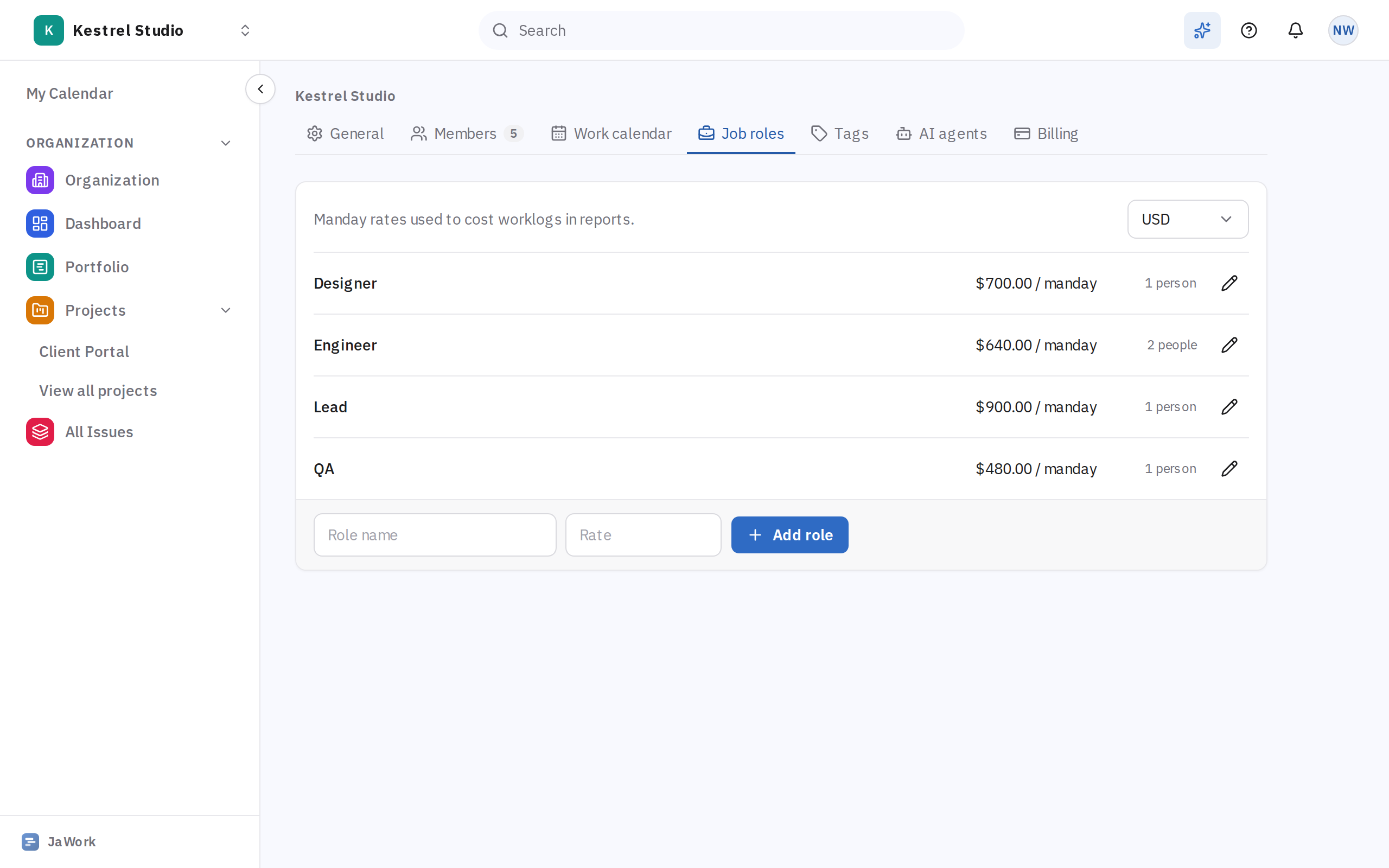
Each role shows how many people have it. A person’s job role is chosen in each project, on the project’s Profile › Members tab, in the Job role column. The dashboard’s Resource Cost uses these rates.
Tip: Change a rate when your prices change: reports from then on use the new rate.
The hours in a working day come from the work calendar.
Was this helpful?
Thank you — it helps us improve the guides.
Still stuck? The assistant answers from these guides, and a person takes over when it can't.
Chat with us